In this guide
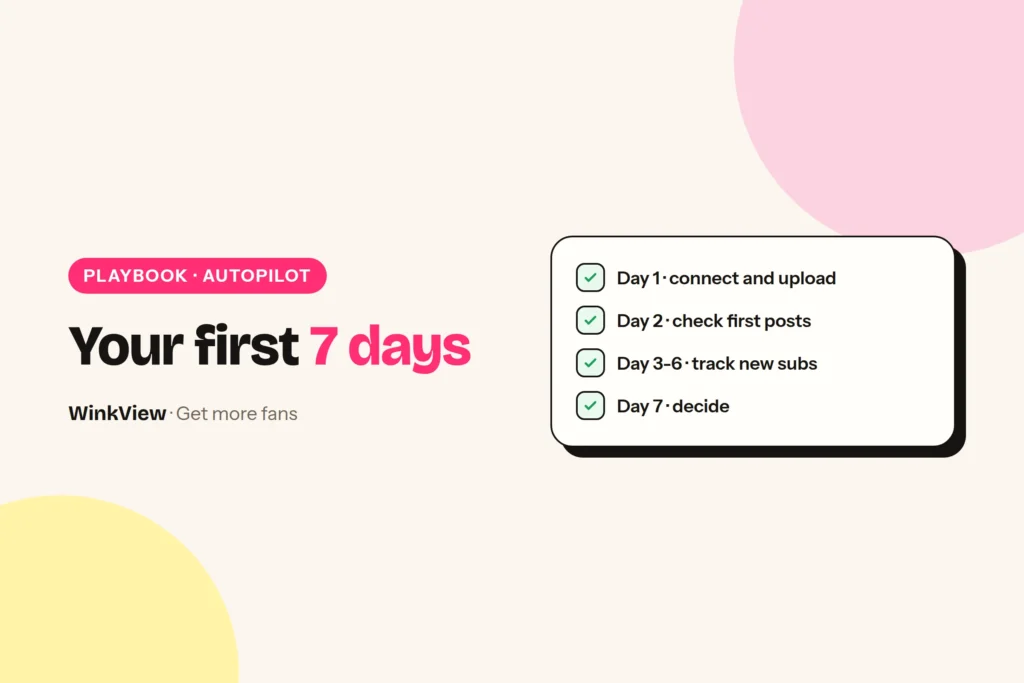
OnlyFans promotion on autopilot means you drop in a creator’s raw clips, WinkView edits them into ready-to-post videos and posts them everywhere, every day, while you check in for a few minutes. Your first 7 days are simple: set up on day 1, check the first posts on day 2, track new paying subscribers on days 3 to 6. On day 7, compare the extra revenue you kept with the plan cost and decide.
The short answer
- Day 1: connect the creator’s accounts, upload a batch of raw clips and set her language and voice.
- From day 2, editing and posting run by themselves; you spend a few minutes a day ticking edits and checking.
- Track two numbers each day: new paying subscribers and PPV bought by those new subscribers.
- Day 7: if the extra revenue you kept is higher than the plan cost, the week has paid for itself.
- The first 7 days are a free trial.
What runs by itself and what you check
WinkView works on the first steps of the money chain. A public post brings a profile visit, the visit brings a link click, and the click can become a paid subscriber who later buys PPV.
The Video Editor turns her raw clips into ready-to-post vertical videos: best moment first, dead air cut, hook text on screen, music. Reposting posts every approved clip, every day, with captions in her language, spread through the day in her time zone. Steps four and five happen on her paid page, which you run as usual.
WinkView does
- Writes captions and posts every day to Reels, Trial Reels, a daily Story, TikTok, Shorts, Facebook Reels, Threads and X
- Edits each raw clip: best moment first, dead air cut, hook text, music
- Posts her best clips again, so they keep working
- Flags when she runs out of clips or an account needs reconnecting
You do
- Drop in raw clips, tick the edits and top up the folder
- Glance at posting history each day
- Note new paying subscribers and PPV
- Run the paid page: pricing, messages, PPV
Day 1: connect and add content
Have these ready before you start: 10 to 20 safe-for-work public clips, three captions she likes, her languages and time zone, and her link page. Raw phone clips are fine: the WinkView Video Editor edits them before they go out.
- Add the creator. Create her profile and set her language, voice and time zone.
- Connect her accounts. Link Instagram, TikTok, YouTube, Facebook, Threads and X through their official connections.
- Upload the batch. Put the clips in her content library. Example: Mia, a fitness creator, adds 15 clips from her gym routines and rest-day meal prep.
- Turn approvals on. Nothing posts until you tick it. For the first days, check each edit and caption before you approve.
- Check the link. Make sure her bio points to one working link, such as a free link page with her real paid-page links.
Write down one number today: how many new paying subscribers she gets in a normal week. That is your comparison point on day 7.
Day 2: check the first edits and posts
Open posting history and then the apps themselves. Confirm that posts went out on every destination, the daily Story is live, and the captions sound like her rather than like a brand.
Then watch the first edits closely: does the best moment come first, is the hook text right, does the music fit her? Each clip should look like her and point to the link, not push a hard sale. Fix anything off before you tick it and add a better sample caption if needed.
Tip
Results will look small at first. Most short videos do little and one does very well, so the first few days say more about whether posts go out than about growth. Keep the clips coming.
Days 3 to 6: watch and track
Editing and posting now run by themselves. Your daily job takes a few minutes: tick the new edits, check posting history for failures, reconnect any account the Today tab flags, and top up the folder if clips are running low.
Then fill one row of the tracker. Count only new paying subscribers and PPV bought by those new subscribers, because that is the extra revenue this week can show. If her paid platform offers tracking links, put one on her link page so social visitors are counted separately.
Worked example
Example numbers for Mia, whose subscription costs $10 a month. A normal week brings her about 5 new paying subscribers.
| Day | Posts out | New paying subs | PPV from new subs |
|---|---|---|---|
| 1 | Setup | 0 | $0 |
| 2 | 7 | 1 | $0 |
| 3 | 7 | 1 | $0 |
| 4 | 7 | 2 | $15 |
| 5 | 7 | 2 | $0 |
| 6 | 7 | 2 | $15 |
| 7 | 7 | 1 | $0 |
| Total | 42 | 9 | $30 |
These are illustrative figures, not a promise or a customer result.
Copy this template
7-DAY TRACKER: [creator name]
Subscription price: [$]   Normal week new subs: [ ]

Day | Posts out | New paying subs | PPV from new subs | Notes
1   | setup     | [ ]             | [ ]               | [ ]
2   | [ ]       | [ ]             | [ ]               | [ ]
3   | [ ]       | [ ]             | [ ]               | [ ]
4   | [ ]       | [ ]             | [ ]               | [ ]
5   | [ ]       | [ ]             | [ ]               | [ ]
6   | [ ]       | [ ]             | [ ]               | [ ]
7   | [ ]       | [ ]             | [ ]               | [ ]
Total new subs: [ ]   Extra vs normal week: [ ]
Total PPV from new subs: [ ]
Optional: minutes spent each day: [ ]
Day 7: keep or cancel
Work out the extra revenue you actually kept, then set it against the monthly plan cost shown in the offer box below. Use this three-line sum:
- Extra subscribers: this week’s new paying subscribers minus a normal week.
- Extra revenue: extra subscribers times the subscription price, plus PPV bought by new subscribers, minus what new subscribers buy in a normal week.
- Revenue kept: minus the platform fee, and minus the creator’s share if you are an agency.
With Mia’s example: 9 new subscribers minus a normal 5 gives 4 extra. That is 4 x $10 plus $30 of PPV (her normal week has none), so $70 of extra revenue. After OnlyFans’ 20% fee, $56 is kept, before any agency split.
- Kept revenue is higher than the plan cost: the first week has paid for the month. Keep it and add more clips.
- Lower, but edits and posts work and new subscribers are rising: keep going for the month.
- Posts are failing or nothing is going out: fix setup with support, or cancel before the trial ends.
One week is an early signal, not proof of stable growth. A strong clip or a price change can move the numbers either way.
After week one: what to change
Look at which posts brought profile visits and replies, then ask the creator for more clips like those. Keep Trial Reels running, because they show her posts to people who do not follow her yet.
If visitors arrive but few subscribe, the gap is on her paid page, not in the posting. The guide to views but no subscribers helps you find the failing step, and converting followers into subscribers gives you the copy to fix it.
Ready to add more creators? The guide to managing multiple creators has a tracker and a daily check. For what runs on Instagram in detail, read the Instagram automation guide.
Frequently asked questions
What happens during the WinkView free trial?
The 7-day free trial runs the full product. On day 1 you connect the creator’s accounts and upload a batch of raw clips. From day 2 the Video Editor turns them into ready-to-post videos and Reposting posts every approved clip daily with captions in her language. You tick edits and check posting history for a few minutes daily, then decide on day 7 using your own numbers.
Can seven days prove that WinkView works?
Seven days show whether posts go out, whether the edits look right and whether new paying subscribers rise compared with a normal week. They do not prove stable long-term growth, because one strong clip or a price change can move a single week. Treat day 7 as an early signal and keep tracking weekly.
How do I know which subscribers came from WinkView?
Compare this week’s new paying subscribers with a normal week before you started, and count only the difference as extra. If her paid platform offers tracking links, put one on her link page so visitors from social posts are counted on their own. Count each sale once, and mark anything with an unclear source as unconfirmed rather than claiming it.
Does WinkView post to OnlyFans or send PPV?
No. WinkView works on public social platforms: it posts to Instagram, TikTok, YouTube Shorts, Facebook Reels, Threads and X, from her raw clips edited by the Video Editor. It does not post to OnlyFans, Fansly or Fanvue, send paid-platform messages or PPV, or handle checkout. Subscriptions and PPV sales happen on the creator’s paid page, which you run as usual.